> ## Documentation Index
> Fetch the complete documentation index at: https://docs.pvp.trade/llms.txt
> Use this file to discover all available pages before exploring further.
# Copytrading
> Copy or counter trade users on PVP
## Get Started
To begin copy or counter trading a user or to become copytradeable, use the `/copytrade` or `/countertrade` command in DMs with the PVP bot
### Leader Accounts
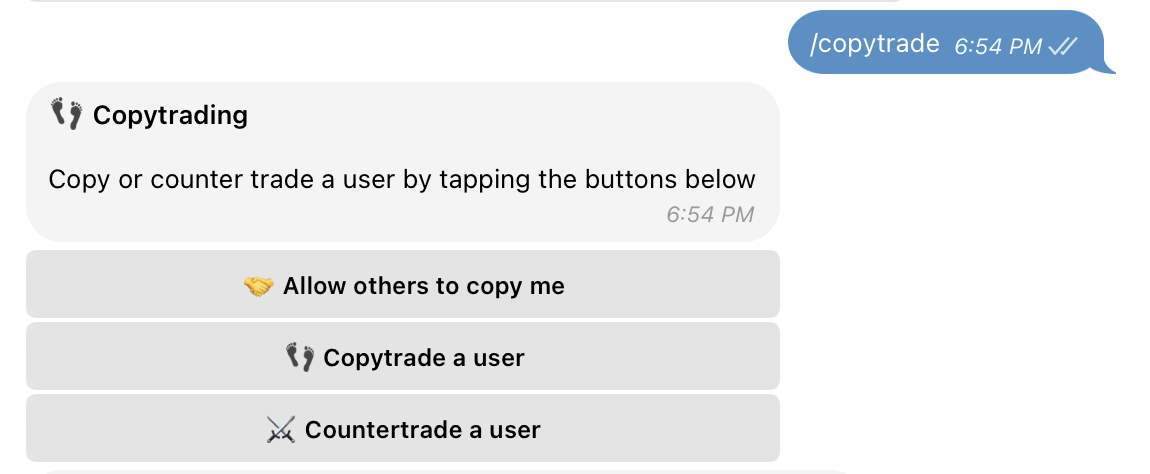 In order to become copy/counter tradeable, tap on the **"🤝 Allow others to copy me"** button to setup an account that others can than copy or counter trade against. You will then be prompted to select one of your PVP accounts to complete setup.
> Note: Leaders can only have a single copy/counter tradeable PVP account
### Profit Share
> 💸 Copytrading leaders earn 10% of the profits of their followers on closing a position, there is no profit sharing from users that countertrade your positions. The profits are sent to your leader account.
### Follower Accounts
In order to become copy/counter tradeable, tap on the **"🤝 Allow others to copy me"** button to setup an account that others can than copy or counter trade against. You will then be prompted to select one of your PVP accounts to complete setup.
> Note: Leaders can only have a single copy/counter tradeable PVP account
### Profit Share
> 💸 Copytrading leaders earn 10% of the profits of their followers on closing a position, there is no profit sharing from users that countertrade your positions. The profits are sent to your leader account.
### Follower Accounts
 To copy or counter trade another user, tap on either **"👣 Copytrade a user"** or **"⚔️ Countertrade a user"** and reply with their username once prompted
> Note: You can have multiple copy/counter trading accounts
## Managing Accounts
To copy or counter trade another user, tap on either **"👣 Copytrade a user"** or **"⚔️ Countertrade a user"** and reply with their username once prompted
> Note: You can have multiple copy/counter trading accounts
## Managing Accounts
 In order to manage your copy/counter trading accounts, use the `/copytrade` or `/countertrade` commands and tap on the button that says **"⚙️ Manage Copytrading Accounts"**, you will then be prompted to select which account you would like to manage
 ### Viewing Positions
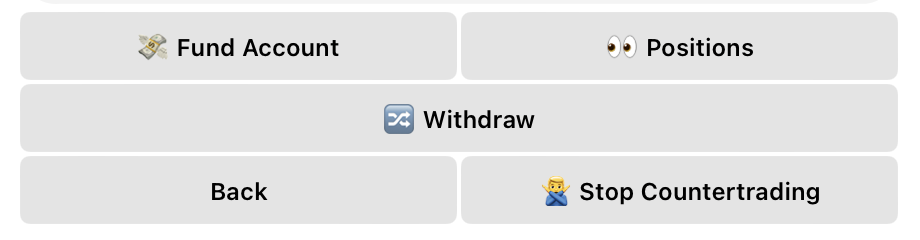
Once you have selected a copy/counter trading account you can tap on **"👀 Positions"** to view your accounts active positions
### Adding Funds
You can transfer funds into a copy/counter trading account from your primary account by tapping **"💸 Fund Account"**
Use `/wallet` for instructions on how to fund your primary PVP account
### Withdrawing Funds
You can withdraw funds from a copy/counter trading account by tapping on **"🔀 Withdraw"** which will prompt you for the amount which will then be transferred to your primary account set (see `/accounts`)
### Stop copy/counter trading
Stopping copy/counter trading will convert your account into a regular account which can be managed by using `/accounts` where you can export keys or place trades manually
### Viewing Positions
Once you have selected a copy/counter trading account you can tap on **"👀 Positions"** to view your accounts active positions
### Adding Funds
You can transfer funds into a copy/counter trading account from your primary account by tapping **"💸 Fund Account"**
Use `/wallet` for instructions on how to fund your primary PVP account
### Withdrawing Funds
You can withdraw funds from a copy/counter trading account by tapping on **"🔀 Withdraw"** which will prompt you for the amount which will then be transferred to your primary account set (see `/accounts`)
### Stop copy/counter trading
Stopping copy/counter trading will convert your account into a regular account which can be managed by using `/accounts` where you can export keys or place trades manually